

Campaign Inspiration
How to Send Postcards to WooCommerce Customers: Export, Segment and Mail
WooCommerce tells you who your best and quietest customers are; your orders hold their mailing addresses. Here's how to put the two together and mail a postcard to the right customers.
Erol Branovic · Marketing Specialist
· 4 min read

On this page13 sectionsClose
- Step 1: Decide who to mail in WooCommerce Analytics
- Step 2: Get a full mailing address for each customer
- Step 3: Merge and clean the list
- Step 4: Write a message that fits each group
- Step 5: Upload, send and follow up
- Frequently asked questions
- Can I send postcards to my WooCommerce customers?
- How do I export customer addresses from WooCommerce?
- Does the WooCommerce Customers report include addresses?
- What about guest checkout customers?
- Which WooCommerce customers should get a postcard first?
- Where should the postcard QR code send WooCommerce customers?
- References
To send postcards to WooCommerce customers, use the Customers report in WooCommerce Analytics to decide who to mail, take each customer's mailing address from their orders, combine the two into one clean file, and upload it to a postcard service such as Yotru. The only part that needs a little care is the address, because the Customers report is built to show you who your customers are, not where to post a card.
This is the how-to. For message and campaign ideas, see postcard marketing ideas for WooCommerce stores.
Step 1: Decide who to mail in WooCommerce Analytics
Go to Analytics > Customers. The report lists each customer with their number of orders, total spend, average order value and last active date, and its advanced filters let you narrow the list on those fields. Useful starting points:
- One order, last active 30 to 60 days ago: customers to turn into repeat buyers.
- Several orders, not active for three to six months: customers to win back.
- Highest total spend: customers to thank.
Filter by country too, and keep only the countries you plan to mail. Yotru mails to Canada, the United States and the Netherlands. Then download the report as a CSV.
Step 2: Get a full mailing address for each customer
Check your download before going further. It shows location fields such as city, region, postal code and country, but you need a full street address to mail a card. That lives on the customer's orders. The most reliable choice is the shipping address on their most recent order, because that is where they actually receive parcels.
There are a few ways to get it:
- An order or customer export plugin that includes billing and shipping fields. This is the quickest option for larger lists.
- The billing and shipping fields on registered customers' user profiles, which an export plugin can also pull.
- Copying addresses from individual orders, which is fine for a small VIP list of a few dozen people.
Step 3: Merge and clean the list
Match the customers you chose in step 1 to the addresses from step 2, using the email address as the link. Then tidy the file:
- Keep one row per customer, with the newest address.
- Put first name, last name, street, city, province or state, postal code and country in separate columns.
- Add a column for anything you want on the card, such as the last product category they bought.
- Remove anyone who has asked not to be contacted, and check that your privacy policy covers marketing by mail.
Step 4: Write a message that fits each group
Keep each card to one idea and one action. The examples below are for a made-up online tea shop.
| Group | Card message | Action |
|---|---|---|
| First-time buyer | "Thanks for your first order, [first name]. Here's what our regulars reorder most." | Scan to see best sellers |
| Lapsed regular | "We've missed you. The new autumn blends are in." | Free shipping until a set date |
| Top customer | "A personal thank-you from our founder." | Early access to the next release |
Step 5: Upload, send and follow up
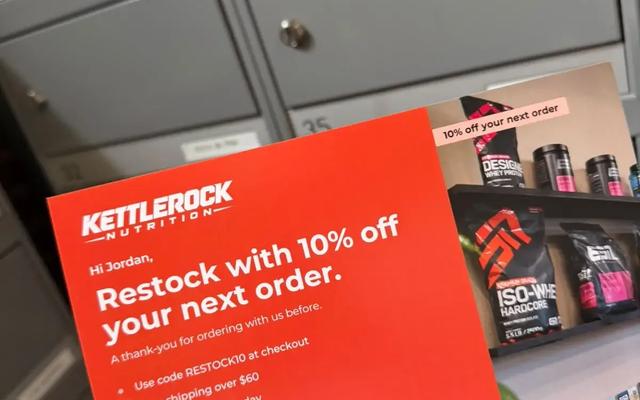
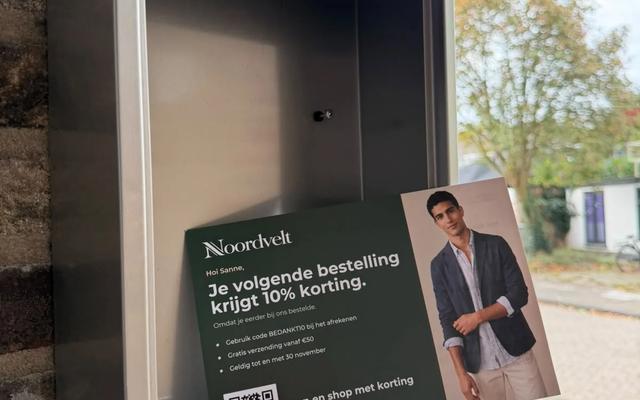
Upload the file to Yotru and review every recipient before you pay. Each card carries its own QR code, which can point to a product page, a collection or a coupon landing page in your store. Production and mailing take about two to three days, and most cards arrive in about a week. Send a short email a few days after the expected delivery, so the two messages land together. For timing, see how to run an email and postcard sequence.
Using another platform as well? The same approach works for every store; our guide to direct mail for ecommerce covers Shopify, HubSpot and Klaviyo too.
Frequently asked questions
Can I send postcards to my WooCommerce customers?
Yes. Choose the customers in WooCommerce Analytics, export their mailing addresses from their orders, and upload one clean file to Yotru.
How do I export customer addresses from WooCommerce?
Full street addresses are stored on orders and on registered customers' profiles. An order or customer export plugin that includes billing and shipping fields is the quickest way to get them into a CSV.
Does the WooCommerce Customers report include addresses?
It includes location fields such as city, region, postal code and country, which are useful for filtering. Check your download; for a full street address, use the shipping address on the customer's latest order.
What about guest checkout customers?
Guest buyers have no user account, so their address only exists on their orders. Export from orders so they are included.
Which WooCommerce customers should get a postcard first?
Recent first-time buyers, lapsed repeat customers and your highest spenders, because each of those groups has a clear reason to receive a personal card.
Where should the postcard QR code send WooCommerce customers?
Straight to something they can buy or claim: a product page, a collection or a page that applies the card's coupon. Avoid sending them to your homepage.
References
Erol Branovic
Marketing Specialist
Erol Branovic is a sales-focused marketing professional at Yotru, covering B2B messaging, sales outreach, and how businesses communicate their value to decision-makers through direct mail and personalized campaigns.
Keep reading
Insights & Trends
Direct Mail for Ecommerce: How Online Stores Use Postcards to Bring Customers Back
Direct mail for ecommerce works best on people who have already bought from you. Here's which customers to mail, when a postcard beats another email, and how to run both together.
Jenna Gallo
5 min read

Campaign Inspiration
Beyond the First Order: Postcard Marketing Ideas for WooCommerce Stores
The biggest growth lever for most WooCommerce stores is the customer who already bought once. Here's how to turn that into a second, third, and referred order.

Jeffrey Huis in 't Veld
3 min read
Campaign Inspiration
Klaviyo and Direct Mail: When Your Email Segments Need a Postcard
Klaviyo is great at telling you who stopped opening your emails. Those are often the customers a postcard can still reach. Here's how to export the right Klaviyo segments and mail them.
Chinedu Okafor
4 min read
Work with Yotru
Mail your WooCommerce customers
Upload your WooCommerce customer file, write one message per segment, and review every recipient before you pay.