Employability
6 min read
How to Build a Resume in Microsoft Word (2026 Guide)
Synopsis
Learn how to create an ATS-friendly professional resume in Microsoft Word with step-by-step instructions, formatting tips, and template guidance for 2026.
Microsoft Word remains one of the fastest ways to build a professional resume — but most people unknowingly use it in ways that hurt their chances. The issue is not the tool itself. It is how features like columns, text boxes, and formatting choices interact with applicant tracking systems.
This guide shows you how to use Word the right way. You will learn how to choose a clean, ATS-safe template, structure your content so it is easy to scan, and format your resume so it passes automated filters and reaches a human reviewer.
Key Insight
Most Word resume formatting problems come from three sources: text boxes, multi-column layouts, and content placed in headers or footers. Applicant tracking systems often skip or misread these entirely.
Choosing the Right Word Template
Word includes many resume templates, ranging from simple single-column layouts to more complex designs with colors, sidebars, and visual elements. The template you choose has a direct impact on how well your resume performs.
Applicant tracking systems (ATS) read resumes as plain text in a structured order. Templates that rely on tables, text boxes, or graphics can disrupt this structure and cause information to be misread or lost during parsing.
The most reliable templates for ATS compatibility share a few key characteristics:
- Use a single-column layout for the main content
- Include standard section headings such as Work Experience, Education, and Skills
- Avoid text boxes and graphics
- Use standard fonts like Calibri, Arial, or Times New Roman
- Show clear section breaks without relying on hidden table structures
In Word, templates labeled “Simple,” “Classic,” or “Professional” are typically the safest choices. You can find them by searching for “resume” under File > New (Windows) or File > New from Template (Mac).
Templates to avoid include:
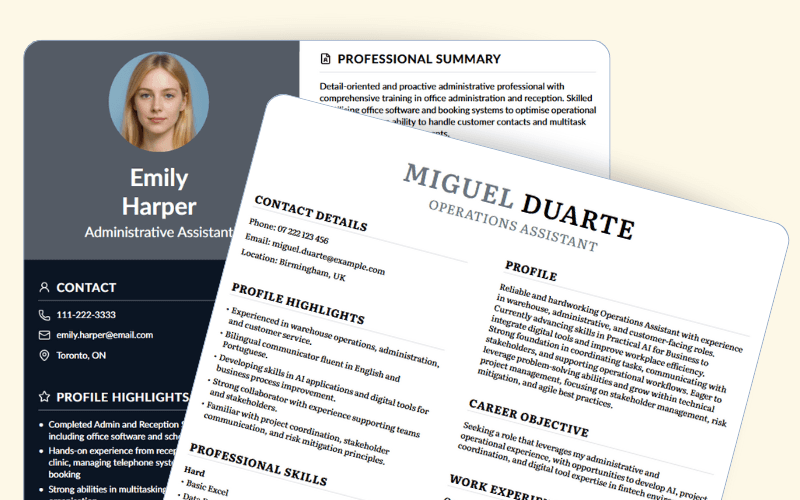
- Multi-column designs with sidebar sections
- Templates with decorative borders or background images
- Layouts that place contact details in headers or footers
- Designs that use text boxes to display skills or key information
Pro Tip
Before committing to a template, paste the text into a plain .txt file and read through it. If the content appears scrambled or out of order, an ATS will likely have the same problem.
Setting Up Your Document
Before entering any content, configure a few document-level settings that affect both readability and ATS parsing.
Margins: Use 1-inch margins as a default. You can go as narrow as 0.5 inches if you need more space, but avoid anything smaller — some systems ignore content that falls too close to the page edge.
Fonts: Stick to one font throughout. Calibri and Arial are modern and clean. Times New Roman works for conservative industries. Avoid mixing font families — it adds visual noise and can signal careless formatting to reviewers.
Font sizes: 10–12pt for body text. 14–18pt for your name. 12–14pt for section headers.
Line spacing: 1.0 or 1.15 for body text. Use paragraph spacing (6–12pt before/after) to create visual separation between sections rather than adding extra blank lines.
To adjust line spacing in Word: Home tab > Line and Paragraph Spacing icon > Line Spacing Options.
Building Each Section
Header
Your header should contain your name, a phone number with a professional voicemail, a professional email address, your city and province or state, and a LinkedIn URL if your profile is current.
You no longer need to include your full street address. City and region is sufficient for most applications.
Format your contact details on one or two lines below your name. Avoid placing any of this information inside a text box or the document's header area — if you used the document header zone, an ATS may skip it entirely.
Professional Summary
A two-to-four sentence summary at the top of your resume helps both ATS systems and human reviewers quickly understand your background. For experienced candidates, focus on years of experience, your core area of expertise, and a specific outcome or skill that sets you apart. For recent graduates or career changers, describe what you bring and what type of role you're targeting.
Keep it factual. Avoid phrases like "passionate professional" or "dynamic self-starter" — reviewers read these hundreds of times a week and they carry no useful information.
Work Experience
List positions in reverse chronological order. For each role, include:
- Company name
- Job title
- Location
- Dates (Month/Year format)
- Three to six bullet points covering what you did and what resulted from it
Each bullet should start with an action verb and, where possible, include a measurable outcome. The difference between "Managed social media accounts" and "Grew LinkedIn following from 2,000 to 12,000 over 18 months, generating 43 qualified leads" is significant — one describes a duty, the other describes an outcome.
Word's built-in indent and bullet tools (Home tab) handle bullet formatting cleanly. Use the Increase Indent button rather than pressing Tab manually to ensure consistent spacing.
Education
For candidates more than five years out of school: degree, institution, and year of graduation is all you need. Remove GPA after five years of professional experience.
For recent graduates: place education above or near the top, and include relevant coursework, academic honors, or notable projects where they strengthen your candidacy.
Skills
A dedicated skills section serves two purposes: it helps ATS systems match your resume to job requirements, and it gives human reviewers a quick reference for your technical profile.
Group skills by category where possible — Technical Skills, Tools, Languages. Pull exact terminology from the job descriptions you're targeting and include it where accurate. Many systems match on keyword precision, so "Google Analytics" and "GA4" are not interchangeable if the posting specifies one.
Pro Tip
Use both the acronym and the full term when introducing a specialized tool or certification — for example, "Search Engine Optimization (SEO)" — to cover both variations that may appear in ATS keyword filters.
ATS Compatibility: What Word Gets Right and Wrong
Word itself is ATS-compatible when used properly. Most issues come from formatting choices, not the tool.
- Text boxes
Risk: Content may be skipped
Better approach: Use standard paragraph text - Multi-column layouts
Risk: Reading order can become scrambled
Better approach: Use a single-column structure - Header or footer for contact details
Risk: Information may not be parsed
Better approach: Place contact details in the main body - Tables for layout
Risk: Inconsistent parsing across systems
Better approach: Use spacing and indentation instead - Embedded graphics or visual elements
Risk: Ignored by ATS
Better approach: Remove decorative elements and keep content text-based/
The resume columns and ATS compatibility guide covers this in more depth if you're evaluating single vs. double-column layouts.
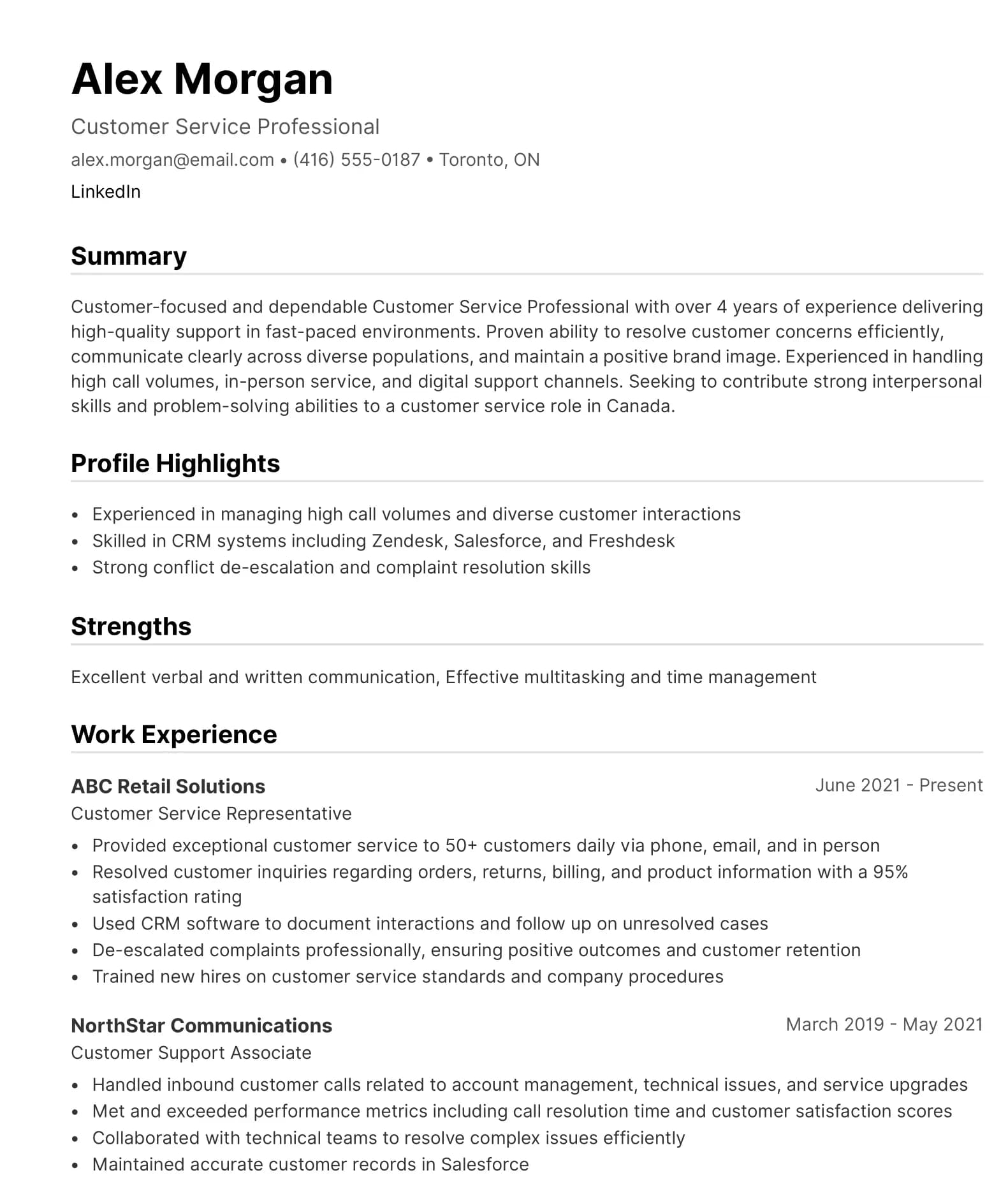
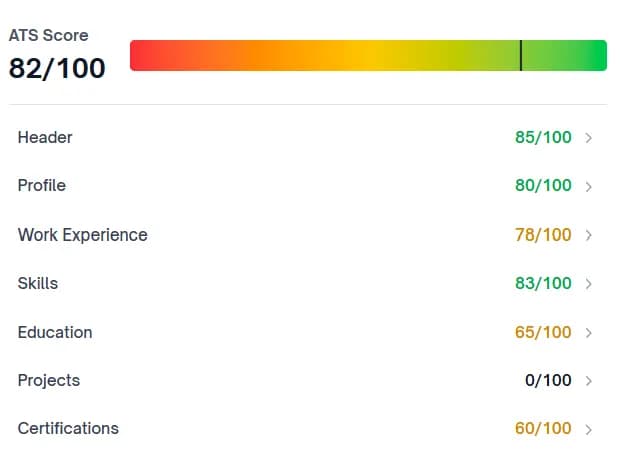
ATS-Optimized resumes That Meet Employer Standards
Our AI-powered scoring system helps organizations assess and standardize resume quality at scale. ATS-compliant templates support consistent formatting, keyword alignment, and interview readiness across cohorts.
Templates vs. Building From Scratch
Most job seekers are better served by starting from a clean Word template and customizing the content than by building from scratch. Templates eliminate the time spent on basic formatting decisions and provide a structure that's been tested for readability.
The exception is creative roles — design, advertising, visual arts — where a distinctive layout can be part of the application's value. In those cases, the visual presentation is relevant to the work itself.
Word template
Best for: Most industries and roles
Watch out for: Templates that use tables or text boxes
From scratch
Best for: Creative roles or specific layout needs
Watch out for: Formatting errors and ATS issues
Dedicated resume builder
Best for: ATS optimization and step-by-step guidance
Watch out for: Less control over final design
If you're unsure whether your Word resume is structured in a way that ATS systems can read, the ATS resume guide outlines the key checks in about five minutes.
Common Mistakes to Avoid
These are common Word resume mistakes and simple fixes:
- Placing contact information in the header
- Using text boxes for skills, summary, or key sections
- Inconsistent date formatting
- Mixing font families (e.g., Calibri and Times New Roman)
- Using personal pronouns (I, me, my)
- Including a photo when not required
- Font size below 10pt
- Margins smaller than 0.5 inches
Good practices to follow:
- Save as .docx for editing and PDF for submission (unless told otherwise)
- Use a clear file name with your name, not “Resume.docx”
- Use present tense for current roles and past tense for previous roles
- Keep bullet punctuation consistent
- Limit the resume to one or two pages and remove outdated roles unless relevant
Important
When saving for submission, always use File > Save As and choose PDF unless the job posting requests .docx. PDF preserves your formatting exactly. A .docx file may render differently depending on the recipient's version of Word.
When to Use a Dedicated Resume Builder
Word handles the mechanics of resume creation well, but it doesn't give you feedback on what you've written or how it will be interpreted by an ATS. A dedicated resume builder adds a layer of guidance that Word can't provide on its own — checking that your content is structured in a way that systems can read, and surfacing gaps or formatting issues before you apply.
This is particularly useful if you're building a resume from scratch, updating a resume after a long gap in applications, or targeting roles where keyword alignment matters. Word is the tool; knowing what to put in it — and how — is a separate skill.
About the Author

Team Yotru
Employability Systems
Team Yotru
Employability Systems
We build practical career tools for training providers and workforce programs, combining labor market insights with real employment outcomes. Follow us on LinkedIn.
Frequently Asked Questions
Both formats work, but the right choice depends on the application. Most ATS systems parse .docx files reliably. PDF preserves your formatting exactly and is safer when submitting directly to a human reviewer. When instructions don't specify, send both — .docx for the system, PDF as your attached file.
Audience Context
This guide is for job seekers at any experience level who want to build a professional, ATS-compatible resume using Microsoft Word. Whether you're starting from scratch or updating an existing document, these answers cover the most common formatting and submission questions for 2026 hiring.
Disclaimer
This article is for informational purposes only. Resume standards vary by industry and employer. Always follow specific application instructions provided by the hiring organization.
Further Insights
Resume Building & Optimization
- Make Your Resume ATS-Friendly in 5 Minutes
- 7 Traits All Great Resumes Possess
- What Type of Fonts Should You Use in Your Resume
- What Paper Size or Screen Size Should You Use for Your Resume
Skills & Career Development
- How to Build a Resume With No Work Experience
- How to Condense Your Resume From Two Pages to One Page
- When Should You Use an Objective on Your Resume
Market & Research
- The Secret Behind Yotru Templates: Built to Help You Win
- Simple, Clean and Effective: The Power of a Minimalist Resume
Yotru Tools & Development
References
References
- University of Toronto Student Life – Resumé and cover letter toolkit (includes Word‑based resume guidance and samples).
https://studentlife.utoronto.ca/wp-content/uploads/CC-Resume-and-Cover-Letter-Toolkit.pdf - Georgetown University Cawley Career Education Center – Resume content & formatting (covers margins, fonts, length; aligns with your Word formatting advice).
https://careercenter.georgetown.edu/major-career-guides/resumes-cover-letters/resume-formatting-tips/ - Florida State University Career Center – Writing a resume (explicitly recommends creating resumes in Microsoft Word and then saving as PDF; includes ATS tips).
https://career.fsu.edu/sites/g/files/upcbnu746/files/Guides/resume%20writing%20guide%20web.pdf - University of Manitoba Career Development Centre – Undergraduate resume guide (PDF with step‑by‑step resume construction and formatting).
https://umanitoba.ca/asper/sites/asper/files/2021-04/Resume_Guide_Undergraduate.pdf - KPU Career Services – How to build your resume (step‑by‑step guide, includes notes on Word/PDF submission formats).
https://www.kpu.ca/sites/default/files/Career%20Services/How%20to%20Build%20your%20Resume_0.pdf - UFV Career Centre – Resume writing (PDF with practical guidance including using Microsoft Word for resume and cover letter formatting).
https://www.ufv.ca/media/assets/career-centre/career-services-and-resources/CECE-Resume-Writing.pdf - Yale Office of Career Strategy – Yale College: Resume templates (Word templates and formatting guidance).
https://ocs.yale.edu/resources/ocs-resume-template/ - University of Washington Career & Internship Center – Sample resumes (includes downloadable Word templates and examples).
https://careerservices.fas.harvard.edu/resources/bullet-point-resume-template/ - Harvard FAS / Harvard College – Create a resume/CV or cover letter plus Resumes & cover letters PDFs (comprehensive resume guidance with formatting that aligns with your recommendations).
https://careerservices.fas.harvard.edu/channels/create-a-resume-cv-or-cover-letter/
https://cdn-careerservices.fas.harvard.edu/wp-content/uploads/sites/161/2024/08/2024-HES_resume-and-letter.pdf - Ontario Public Service (Government of Ontario) – Writing a cover letter and resume: tips, tools and resources (includes explicit guidance on acceptable file formats, including MS Word).
https://www.gojobs.gov.on.ca/docs/OPSCoverLetterandResumeWritingGuide.pdf
Maintained by: Employability & Skills Group at Yotru
Review cycle: Regularly reviewed to reflect real-world practice
Last updated: March 22, 2026
Questions or Need Support?
If you are working on employability programs, hiring strategy, career education, or workforce outcomes and want practical guidance, you are in the right place.
Yotru supports individuals and organizations navigating real hiring systems. That includes resumes and ATS screening, career readiness, program design, evidence collection, and alignment with employer expectations. We work across education, training, public sector, and industry to turn guidance into outcomes that actually hold up in practice.